
For server owners
Adding website, Discord and WhatsApp links
Add your server’s website and community links in the right format. Check Discord invites, WhatsApp addresses and social profiles before updating.
Last updated: November 23, 2026
When players are interested in your server, they should reach the right download page or community. Use the form’s dedicated website and social fields, and keep them current instead of relying only on a link buried in the description.
ExampleSRO and the sample values in the images are for illustration; use your own server’s information.
Edit the server from My Servers. For a new listing, find the same Connection Information section in Add Server.
1. Open Connection Information
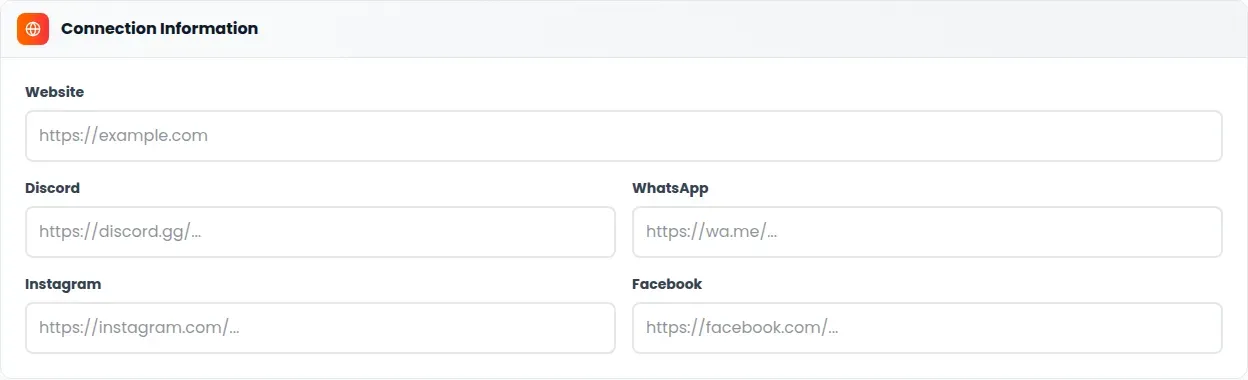
Put each address in its own field. Use a full link rather than only a server name, channel name or invite code. Leave unused channels empty, and do not save the example URL as your real address.
If you manage several servers, double-check the website and Discord invite. A link can work while still belonging to the wrong server. Sending players to another project’s community makes the listing misleading.
2. Enter the official website
Put the server’s public official page in Website. The address must begin with http:// or https://; use https when your site supports it. An address such as https://example.com illustrates the format only.
If registration and downloads live on a subdomain, choose the correct server panel. A landing page for several servers and a particular server’s panel may have different addresses. Open the link in another tab to check where a visitor actually arrives.
3. Add a correctly formatted Discord invite
The Discord field is for invite links. Use https://discord.gg/INVITECODE or https://discord.com/invite/INVITECODE, replacing INVITECODE with your real invite. Do not paste only the code or a browser link to a particular Discord channel.
Open the invite separately and check the community name. Expired or removed invites will not admit new players. Use an invite you can keep available, and update the SRO.GG listing when that invite changes.
A valid invite also adds a Discord card to your server page, showing how many people are online and the total number of members. SRO.GG reads these counts periodically during its link checks, so they are not live. If the invite is invalid or expired, the card is hidden, while a permanent invite keeps it visible. See the server page guide for how the card looks.
4. Fill in WhatsApp and other social links
For WhatsApp, use your contact, group or channel link. Supported forms include wa.me contact links and chat.whatsapp.com group invites. For a contact link, include the phone number’s country code without spaces or hyphens.
Use a profile URL in Instagram, such as https://www.instagram.com/username/. Do not substitute a post or Reels link for the profile address. In Facebook, enter a full link that opens your server’s page or community.
If a field rejects an address, check extra spaces, a missing https prefix and whether you copied the right type of link. Do not place another platform’s URL in that field.
5. Save and check the published links
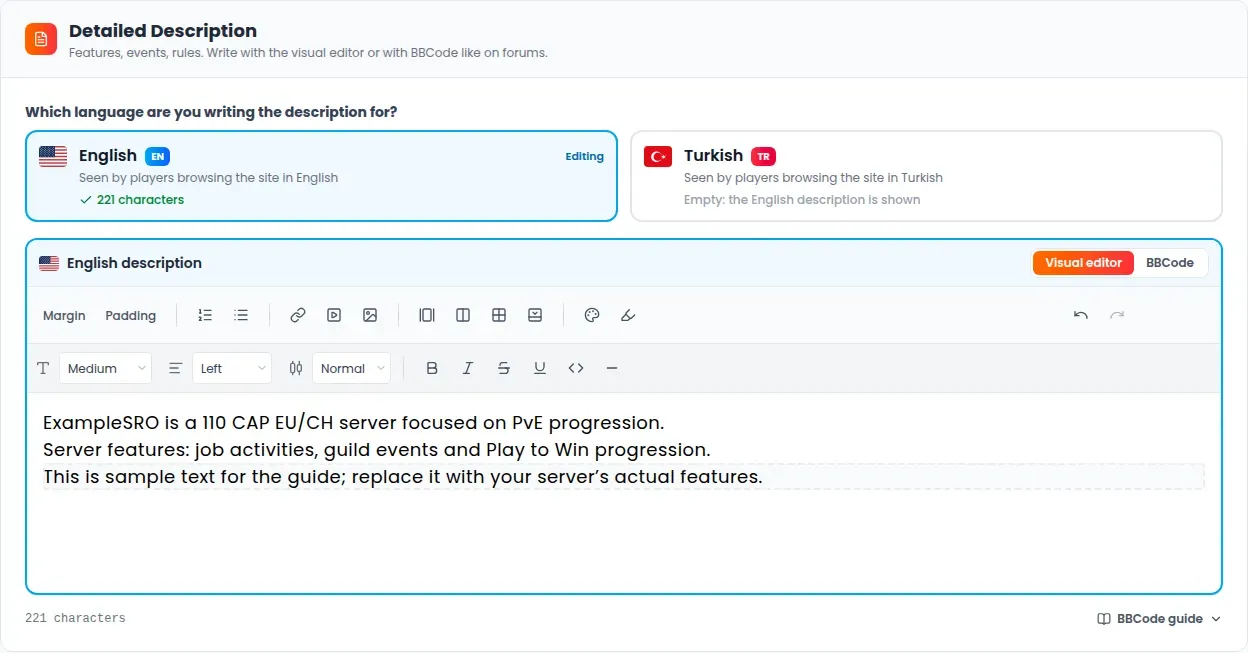
Update any old URLs inside the description too. Changing Connection Information does not automatically replace every link previously written in the description. After checking the addresses individually, click Update Server.
Link changes on active servers can wait for review when made by regular users. Look for the pending-changes notice in My Servers. Once approved, open the corresponding buttons on the public server page and confirm that they lead to the correct website and community.