
For server owners
Redirecting an old server page to a new server
Redirect an inactive server page to your own active listing. Choose an eligible destination, check the public link, and learn how to remove or change the redirect.
Last updated: November 12, 2026
Use Redirect to send visitors from an old listing to your new server listing. This feature works between two server pages on SRO.GG. The ExampleSRO listings and selected values in the screenshots are examples.
1. Check that both listings are eligible

Find the old listing in My Servers. The source server must be Inactive before you can add a redirect. You cannot set a new redirect on an active server; a draft or pending listing does not meet this condition either.
The target listing must be active. As a regular user, you must own both the old and new listings. You cannot choose another account's server. Administrators have different ownership permissions, so use the options available in your own account.
2. Prepare the destination page first
If the new server has no listing, create a separate record through Add Server and wait until it becomes eligible as a destination. Renaming the old listing to resemble the new server does not perform this redirect.
Review the destination's name, cap, opening date, description and links. Returning players should understand which project they have reached. Redirecting does not merge comments, votes or likes into the new listing; it sends visitors to that page.
3. Choose the target in the redirect dialog
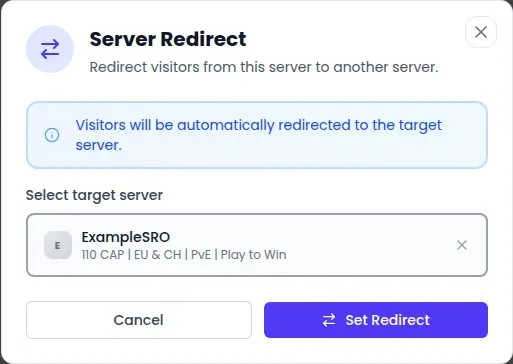
Click Redirect on the old server's card. In Server Redirect, open Select target server. Choose the correct active listing or use Search servers....
Enter at least two characters to filter by name. Compare the short description when names are similar. The search shows an initial set of results, so use a more distinctive part of the name if the target is missing. Check that the selected name appears in the field.
4. Review the direction and save
Confirm that you started from the old listing and selected the new listing as the destination. Click Set Redirect and wait for the success message. Selecting a target or closing the dialog alone does not save the redirect.
A server cannot redirect to itself, and a chain that loops back on itself is rejected. Submission can also fail if the target's status or ownership changed. Selecting a result does not replace the checks performed when saving.
If the target list is empty, verify the account, the old listing's inactive status and the new listing's active status. Do not choose an unrelated listing merely because the intended server is not found.
5. Test the old public link as a visitor
After success, the dialog shows Currently redirecting to: and the target name. Open the destination link to confirm it is correct. Then open the old server's public SRO.GG link in a separate window and check that it takes you to the target page.
Test the actual server address shared with players, rather than a management preview. If you use both Turkish and English links, check both. Redirecting does not change an external website address or Discord invitation; you may need to update old links there separately.
6. Remove the redirect or change its target
Open Redirect again from the same old card. Remove Redirect clears the existing redirect. This does not delete the listing or make the old server active again.
To choose a different target, remove the existing redirect, select another eligible listing and save again. The old page may open without a redirect during the interval. After each removal or target change, test the old public link again.
If the source listing is transferred to another account, you may lose permission to manage it. Redirection and ownership transfer are separate operations; completing one does not automatically complete the other.