
For server owners
Create and manage short links
Create a short link for your website or server page. Choose its type, set optional expiry and password rules, share it and manage it from My Short Links.
Last updated: November 12, 2026
SRO.GG’s short-link tool turns a long website address or your own SRO.GG server page into an easy-to-share link. You can also edit your links and track their click information from the same panel.
ExampleSRO and the example links in the screenshots are used for illustration. Choose your own server and actual destination URL rather than copying and sharing the sample link.
Sign in and choose a username if prompted, then open Create Short Link. The two tabs at the top are used for different destinations.
1. Choose Short URL for a website
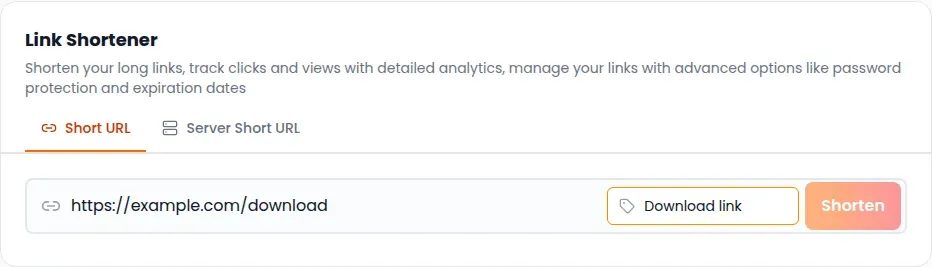
In Short URL, enter the full address you want to shorten. This could be your official download page or an event announcement. Open the original address first to check that it reaches the right destination.
Use Add tag to help identify the link later, such as Launch announcement. The tag does not replace the destination URL. For this link type, the short code is generated automatically.
If you want optional settings, configure the lower section before clicking Shorten. Once you are ready, Shorten creates the link.
2. Choose Server Short URL for your SRO.GG listing
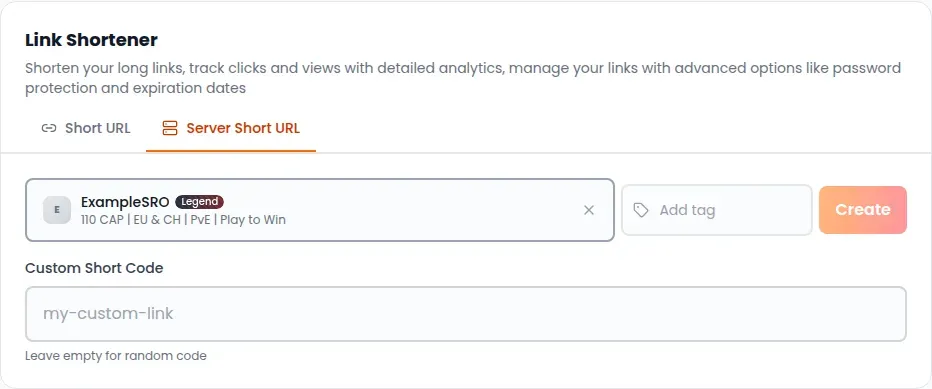
In Server Short URL, select one of the active servers belonging to your account. Type its name into the search field to find it. Drafts and listings awaiting approval are not included in this picker.
This link sends players to your server’s SRO.GG page. Use Short URL instead if you want to shorten the address of your own website.
Custom Short Code is available only when the selected server has the Legend package. Choose an eligible code or leave it empty for a random one. If a code is taken or reserved, choose another. Use Create when ready.
3. Configure the options you need
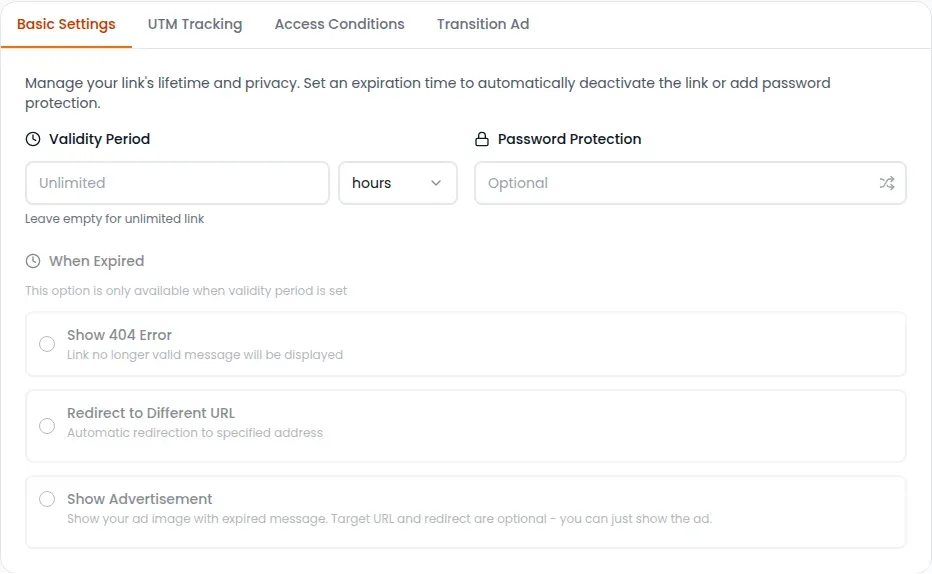
You do not need to enable every advanced feature for your first link. The lower section contains these tabs:
Basic Settings: Add a validity period or password protection. An empty validity period means no expiration. If you set a period, choose what happens after it expires.
UTM Tracking: Use it for external website links to distinguish a campaign and where you shared the link. These fields are disabled for SRO.GG destinations and Server Short URL links.
Access Conditions: Require sign-in. Requiring a server like or comment needs a selected server first.
Transition Ad: Configure an advertisement displayed before redirection. Enable it only when that is the experience you intend.
A password or access requirement gives visitors an additional step before reaching the destination. Account for those steps when preparing the announcement you will share.
4. Copy the new link and test it

After a successful creation, you arrive at My Short Links. Click the short address or copy icon to copy it. Use Open to test its destination.
If you set a password, expiration, advertisement or sign-in condition, check those visitor steps as well as the final page. Then share the link in your announcement.
5. Edit, view statistics or remove a link
Use Edit on its row to open and update the existing link’s settings. Statistics opens the detailed analytics page. On a phone, these actions may be inside the three-dot menu.
If a link has expired or you no longer need it, review its current settings. Delete asks for confirmation and affects whether the shared address works. Do not delete an address that is still in use merely to tidy the list; consider editing the existing link first if you want to keep using the same shared address.