
For server owners
Posting as your server and managing comments
Post announcements and replies as your server. Learn how to edit, pin, hide and restore comments, including character limits, the editing window and owner permissions.
Last updated: November 23, 2026
Use comments on your server page to answer players and share short announcements. From the owner account, you can post under the server's name, pin an important top-level comment and manage visibility. ExampleSRO and the messages in the screenshots are examples.
1. Open your server's comments
Sign in with the account that owns the server. Find the correct listing in My Servers, open its server page and scroll to Comments. Your account needs a username to perform these actions.
The server listing must be active to add comments or replies. You cannot add, reply to or edit comments on an inactive server page. If the option to post as the server is missing, check that you are using the correct account and server page.
2. Write the message and select the server identity
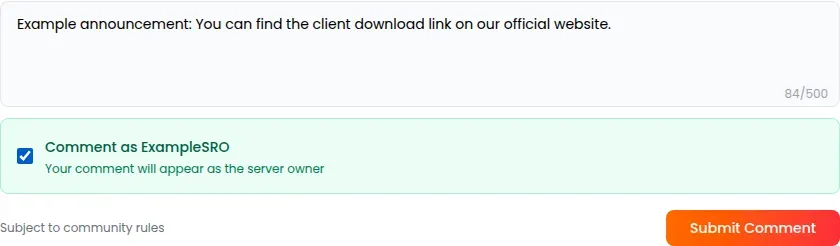
Click Add Comment. Write between 10 and 500 characters. For example: “Tonight's event starts at 21:00. Please check the description for participation requirements.” Give enough context for a player visiting the page for the first time.
Select Comment as ExampleSRO to display the message with the server name and Server badge. Leave it unchecked to post with your username. Check this choice for each new submission.
Review the text and identity, then click Submit Comment. This is a plain-text field; it does not include the description editor's image, table or BBCode tools. Confirm the message appears before submitting the same announcement again.
3. Reply underneath the relevant question
Use Reply on the player's comment. The reply form also has the server identity checkbox and the same 10–500 character limit. This keeps the question and your explanation together.
If a player asks for the download link, share the current address with a brief explanation. Posting an unrelated top-level message can make the connection unclear. You cannot reply to a hidden parent comment; check its visibility if the reply action is unavailable.
4. Correct your own message within the editing window
On your own visible comment or reply, choose Edit, change the text and click Save. For regular users, editing is available for 3 days from the original posting time. Cancel discards the changes in the editing form.
Owning the server does not let you rewrite another player's message. A message posted under the server name still belongs to the account that submitted it; transferring server ownership does not make the new owner its author. Moderators have separate editing permissions. After the editing window closes, you can post a reply explaining a correction.
5. Pin an important top-level comment

As the owner, use Pin on a suitable top-level comment. It appears with a Pinned label before unpinned comments. You can also highlight a useful player's question together with the explanation underneath.
Unpin returns the comment to normal ordering without deleting it. Replies cannot be pinned individually. Review old pinned messages when publishing a new event announcement so outdated dates do not confuse readers. Server owners and moderators can pin comments.
6. Understand hiding and restoring comments
Hide removes a comment or reply from visitors' view. It is not permanent deletion. You may still see a faded version while managing the page. Hiding a parent comment also removes its conversation from visitors' view.
Use Show to restore content you hid when you have the required permission. Server ownership alone does not let you restore a message hidden by another person or a moderator. A visible button can still return a permission error; check the result.
Your management view can differ from a visitor's view. Open the server page in a signed-out window for the final check. Answering constructive questions and keeping the current information pinned helps players find answers without repeatedly asking the same thing.
7. Get notified about new comments
Turn on the New comment notification in the My servers group on the Reminders page. It is off by default. Comments from other players arrive as an hourly summary; your own comments and messages you post as the server are not counted.
Replying quickly to questions helps players. For the details of the notification settings, see the Server owner notifications guide.