
For server owners
Updating server details and launch dates
Edit your existing listing, update cap levels, limits and launch dates, and understand the launch-date restriction, saving and pending changes.
Last updated: November 12, 2026
When your server’s cap, limits or launch plans change, edit the existing listing. Use its entry in My Servers instead of creating another topic for the same server. This guide explains where to change the information and what happens after saving.
ExampleSRO and the sample values in the images are for illustration; use your own server’s information.
1. Open the correct server’s edit form

Sign in with the account that added the server and open My Servers. Check the name and cap level to find the right entry, then open the pencil-shaped edit link on its card.
If the server is missing, you may have signed in with a different Google account. Check your account before making a new listing. Inactive servers cannot be edited. If you have not created a listing yet, start with the server submission guide.
2. Update basic information and limits
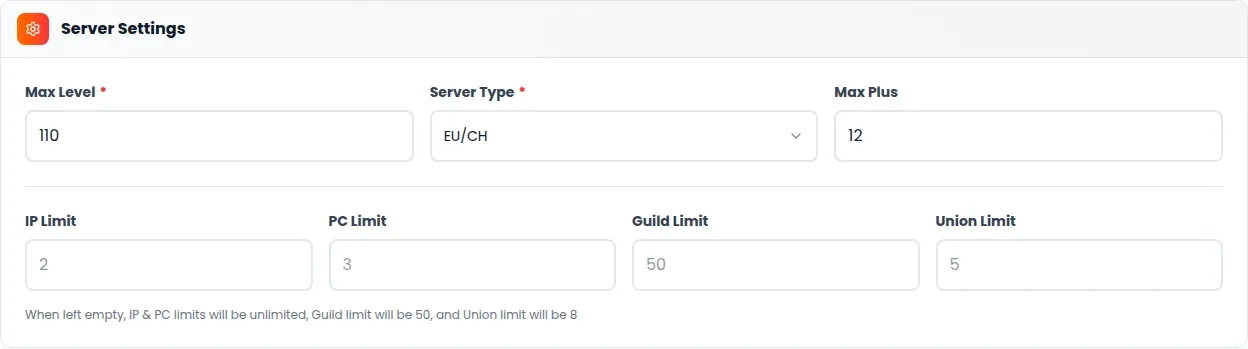
Change the name and short description in Basic Information; change the cap, server type and limits in Server Settings. The English name and short description remain required. If you use Turkish fields too, check the same change in both languages.
For example, if the IP limit has increased from 2 to 3, update the IP Limit field as well as the description. Faint example numbers are placeholders, not saved values. Empty IP and PC limits are displayed as unlimited; an empty guild limit is displayed as 50 and an empty union limit as 8. Enter the actual value when your server uses a different limit.
3. Check the launch date and time together
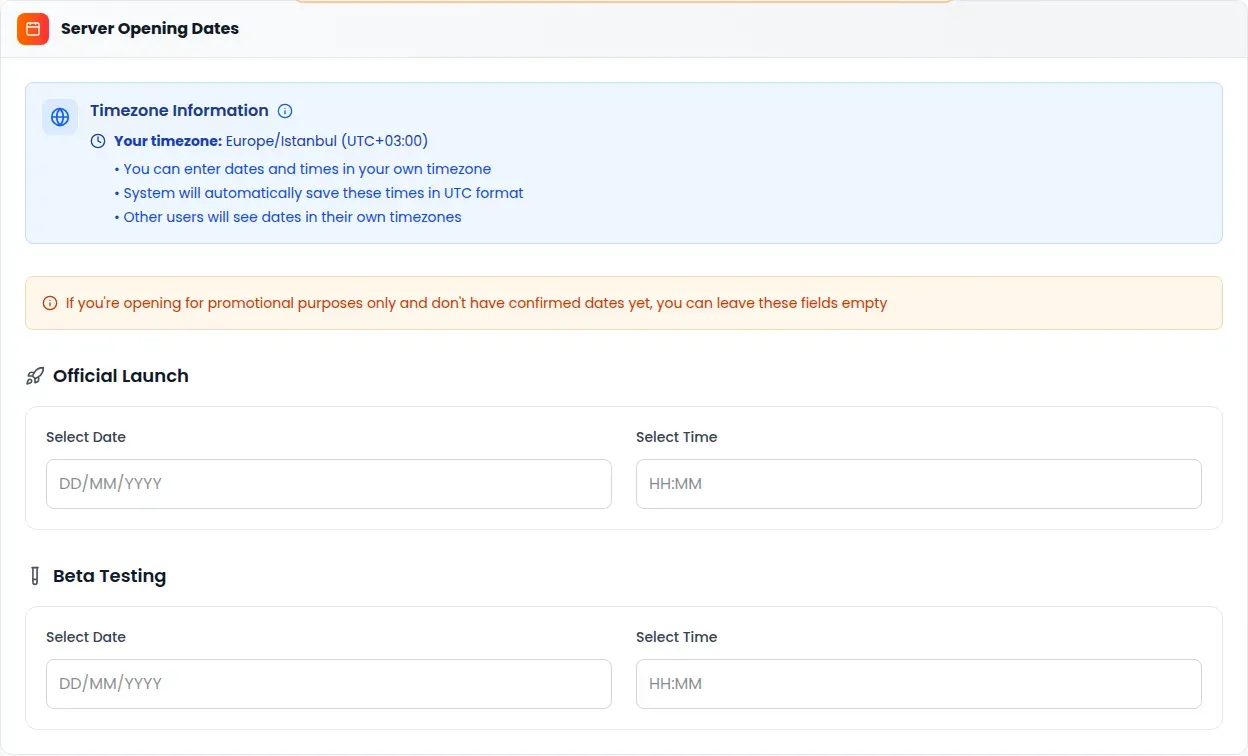
Read the timezone information in Server Opening Dates first. Enter the official date as day/month/year and the time as hour:minute. A future launch date also needs a time and can be no more than six months ahead.
Check beta details against the official launch. The beta day cannot be after the official launch day, and entering a beta date also requires a time. An existing beta date left unchanged may be in the past; you cannot choose a past day as a new beta date.
An active server’s launch date cannot be changed after launch. The field is disabled in that situation. Do not make a reopened server appear newly launched by changing the old listing’s date.
4. Check the form and choose Update Server

Review the whole form before saving, not only the field you changed. Earlier changes waiting for approval may already be loaded into the edit form. Check the selected package too, so a simple information update does not accidentally become a package change.
Click Update Server at the bottom. Correct any fields identified by an error. A successful update returns you to My Servers. Closing the form or leaving the page does not save your changes.
5. Follow the listing’s status
For regular users editing active servers, changes to the name, descriptions, logo and links may wait for review. Seeing a new value in the form does not mean it is already published on the public page. Look for the pending-changes notice in My Servers.
Correcting and submitting a declined or pending listing puts it back into review. Using Update Server on a draft submits the application. If you are not ready to submit, use the draft’s Save as Draft option instead.