Getting started
Your SRO.GG account: Google sign-in and the User Panel
Sign in with Google, choose your username and find the User Panel. Learn how to access your account on desktop and mobile, then sign out.
Last updated: November 9, 2026
You can browse servers and read comments on SRO.GG without signing in. To write comments, reply or like a server, sign in and choose a username first.
Sign-in uses your Google account, so you do not create a separate SRO.GG password. This guide explains how to sign in, find your user panel and sign out.
1. Signing in with Google
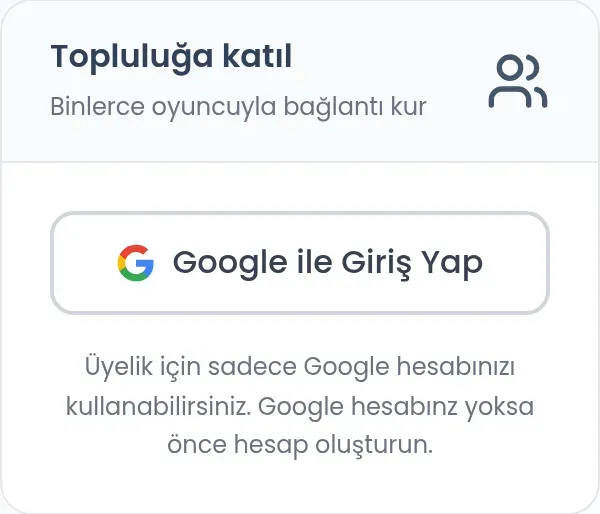 Find Join the Community in the sidebar and click Sign in with Google. This opens Google’s sign-in screen. Select the Google account you want to use and continue. If you do not have a Google account, create one first.
Once signed in, you can use your SRO.GG account. Choose the same Google account when returning later. Selecting a different Google account may not take you to the SRO.GG account you expected.
On a phone, the sidebar may be closed. Use the top-right menu icon shown in step four to open it. You do not need to submit a server or fill in another form to find the sign-in card.
2. Choosing your first username
If your account has no username, Choose Username opens. Enter a name in Username. It must not already be used by another account.
Use 3–20 characters.
You can use A–Z letters, digits, spaces and dots. Accented letters, underscores and other special characters are not accepted.
Do not begin or end with a space or dot.
Open and read the Terms of Service and Privacy Policy. If you accept them, check the box and click Confirm Username. If the form shows an error, correct the issue before continuing. You cannot change the username yourself afterward, so check its spelling before saving.
3. The User Panel
 Once signed in, the sidebar shows User Panel. It contains your username, role and GGCoin balance, along with links to account-related actions.
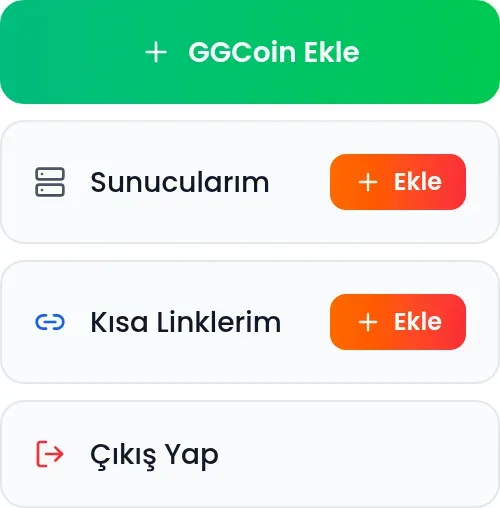 My Servers opens the page where you manage servers linked to your account. Its Add button opens the form for adding a server. My Shortlinks opens your short links, while its Add button starts a new short link. Add GGCoin opens the page where you can top up your balance.
If you only want to find servers and read player comments, you do not need these management links. After signing in, return to the server’s page to write a comment or like it. Check which row a button belongs to: the two Add buttons open different actions.
Use the My Servers row for server management.
Use the My Shortlinks row for short links.
If you can see this panel, you are signed in.
4. Your account menu on a phone
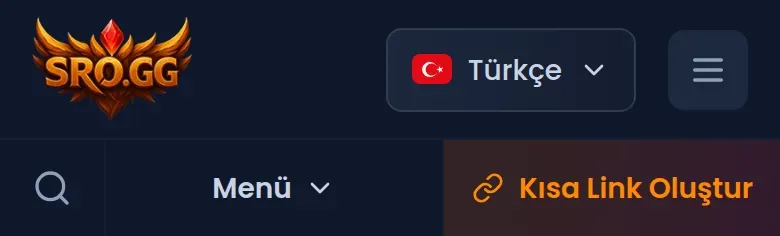 On a narrow screen, the sidebar is hidden until opened. Tap the three-line button beside the language selector at the top right. Screen readers announce this button as Open navigation menu.
The sidebar shows the Google sign-in card when signed out, or User Panel when signed in. Scroll inside it if needed, and use the cross at its top to close it. The lower Menu button opens site navigation links; use the top-right three-line button to reach your account card.
5. Signing out
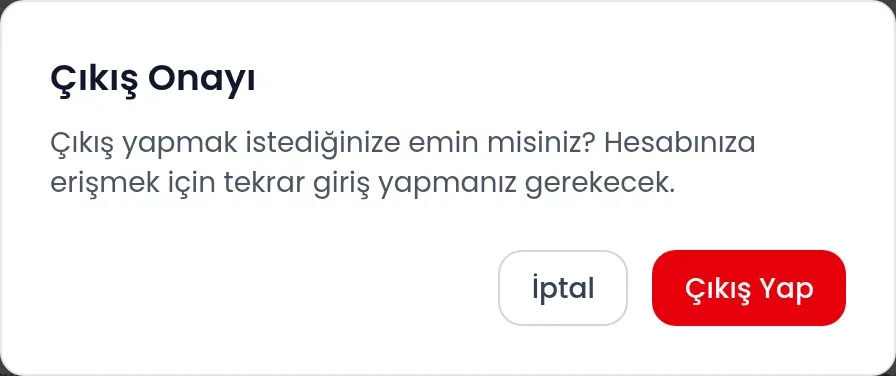
Click Logout in User Panel. In Confirm Logout, choose Logout again to continue, or Cancel to stay signed in.
You will need to sign in with Google again to access your account after logging out. If you use a shared computer, make a habit of signing out when you finish.