Getting started
Cap levels and cap pages
Learn what cap means and how to find cap pages. Use the 120 cap list and Hitsro to understand server totals, rows and page navigation.
Last updated: November 9, 2026
Cap is the highest character level available on a server. If you know your preferred cap, SRO.GG lets you browse servers with that level limit on a dedicated page.
This guide uses the 120 cap page and Hitsro - Dawn of Valor as an example. Cap can help you narrow your search, but it does not tell you the rates, item systems or how quickly you will progress.
1. A server’s cap level

Check Max Level on the server page. Hitsro shows 120 CAP in our example. This means characters can reach level 120 on that server. Race, IP Limit and the other fields are separate settings that can differ between servers with the same cap.
2. Browse by Cap Level
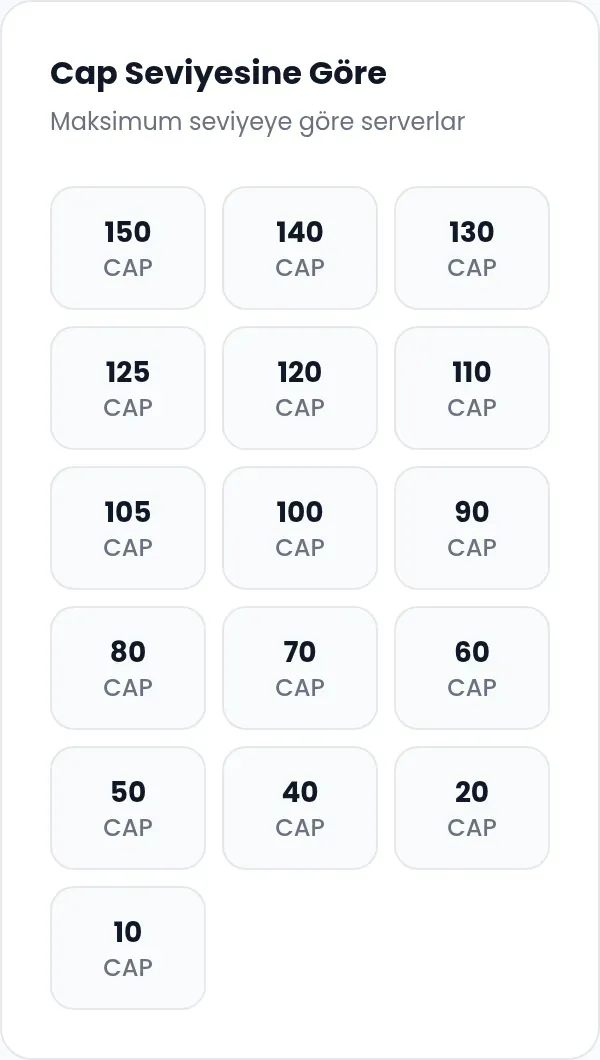 Each number in the sidebar's Browse by Cap Level box links to a cap page. Choose 120 CAP to see servers listed with a maximum level of 120. The number in the box is the level cap itself, rather than a count of players or servers.
Levels are ordered from highest to lowest. The options come from servers registered on the site, so they can change over time. A cap link does not necessarily mean that active servers will be listed for that level: the options also include caps from inactive servers.
Choose the level you want to play.
Check that the page title shows the cap you selected.
Read the server total beneath the introductory text at the top of the page.
To try another cap, select a different level in the same sidebar box.
Selecting a cap opens its list, rather than an individual server page. You choose a specific server next.
3. The cap page and server total
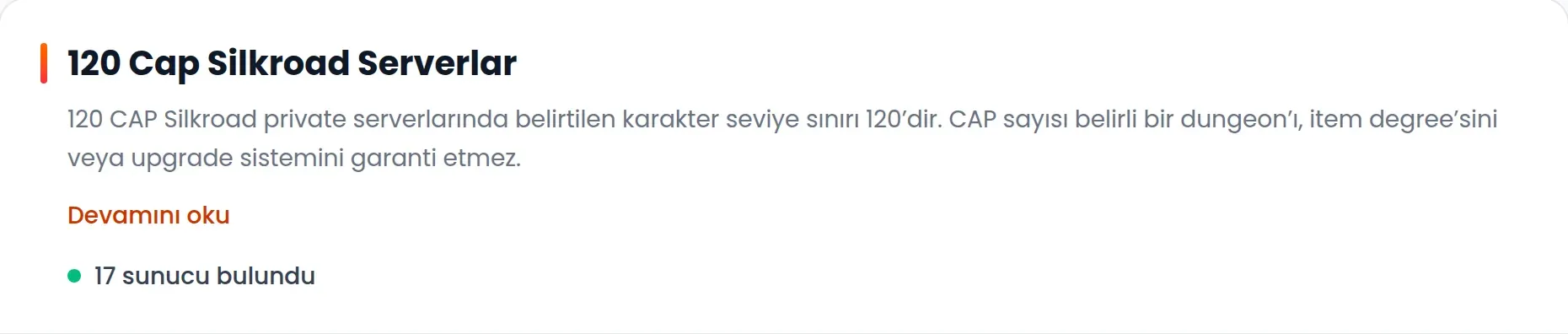
The 120 cap page is titled 120 Cap Silkroad Servers. The screenshot shows 17 servers found. This is a count of listings, rather than online players, and it can change.
The list shows active servers with your chosen cap. A server listed as active may still be waiting to launch. The most recently boosted server appears first. If two boost times match, the most recently updated server comes first. A higher position does not mean a better server.
4. Hitsro’s row

Look at Hitsro's row in our example. The 120 CAP box on the left links to the cap list, while Hitsro - Dawn of Valor opens the server’s page on SRO.GG. The cap box is hidden on narrow phone screens; you can use the sidebar or footer cap links instead.
The online count, comments and likes each tell you something different. Online counts come from the server's own website. When comparing two servers with the same cap, also check their race settings, limits, dates and introductions. Servers with the same cap can play very differently.
5. Cap links in the footer
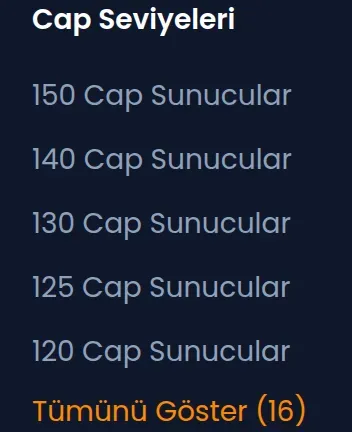 The Cap Levels section at the bottom of the page offers links to the same cap pages. In our example, the link for 120 cap servers takes you back to the 120 cap list. If you have reached the bottom, you can switch levels here without scrolling back up.
The first five levels are shown initially. If more are available, click Show All; the number beside it is the total number of cap options. Use Show Less to collapse the additional links. This expands the footer links, rather than the server list.
6. Moving between result pages
Cap pages show up to 25 servers per page. If the results need more than one page, page numbers and navigation links appear below the list. Use a page number, Next or Previous to browse more results for the same cap.
Our 120 cap example has 17 results, so there are no page navigation links. All the results fit on one page.