
Getting started
Commenting, replying and liking
Use Hitsro to learn how to sort comments, write replies and like posts or servers. Find out when you can edit a post and how owners can post under a server’s name.
Last updated: November 9, 2026
Other players' comments can help you decide whether a server suits you. On SRO.GG, you can reply to comments, like useful posts and like servers you enjoy.
We'll use Hitsro's Comments section as our example. Comment and like counts in the screenshots can change. To post, reply or like, you need to sign in and choose a username.
1. The Comments tab
On Hitsro's page, select Comments. The top row shows the comment count, sorting menu and Add Comment button. The example heading shows 99 comments.

You can read comments without signing in. Each page shows up to 50 main comments, with replies beneath them. If there are more, use the page controls below the list.
2. Sorting comments and reading replies
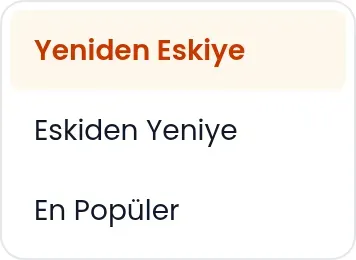 The default order is Newest First. Choose Oldest First to start with earlier posts, or Most Popular to see those with the most likes. Pinned comments stay at the top in every order. Changing the order returns you to the first page. Look at when a comment was posted and read its replies. They can help you understand the player’s experience.
The example below is a comment on Hitsro. Its card shows the author, time, text, heart icon and Reply. Replies appear beneath the original comment, oldest first. Two replies are shown initially; when there are more, use Load more replies.

3. Writing a comment
Select Add Comment, write your message and press Submit Comment. Comments must contain 10–500 characters; leading and trailing spaces are removed. The counter shows how many characters you have written.

The form states Subject to community rules. Describe your own experience: when you played, what you liked and what you did not like. To close the form without posting, select Hide Form.
4. Replying to a comment
Select Reply beneath the relevant comment. Write your response, then press the form's Reply button. Replies also need 10–500 characters. Cancel closes the form.

Use the main comment form for a new topic. Use a reply when responding to a specific player so the conversation stays together.
5. Server likes and comment likes
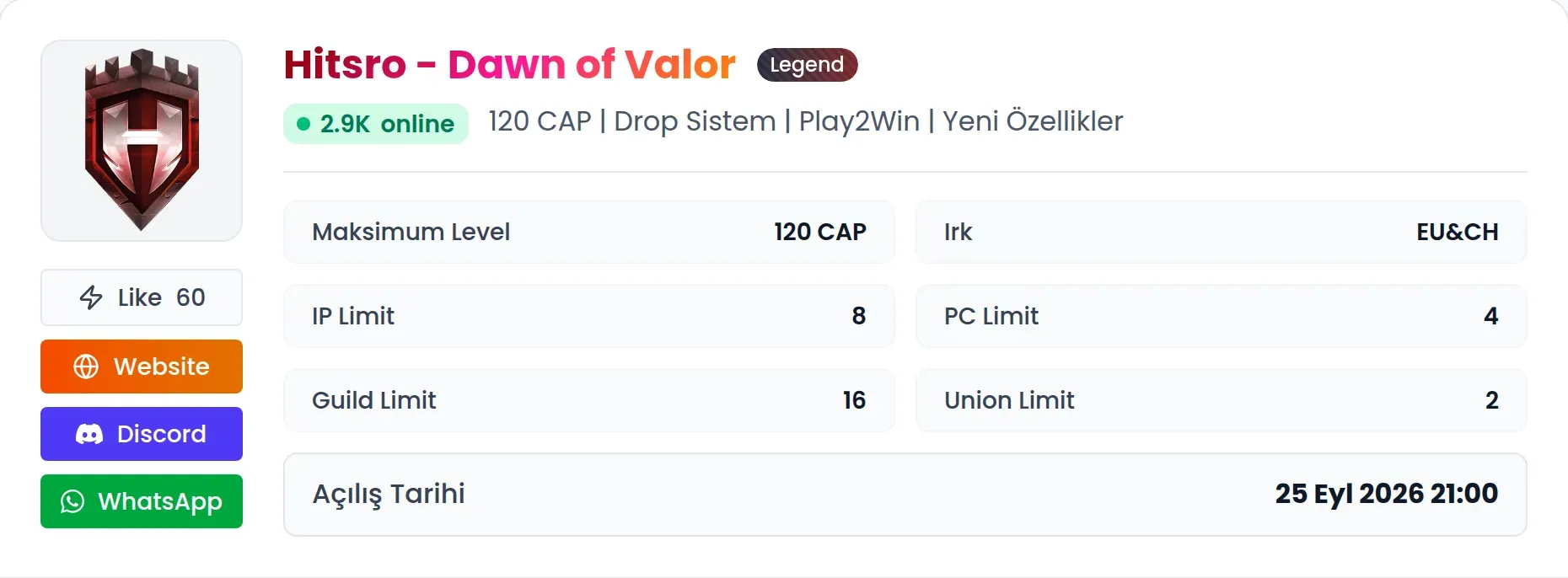
Use Like in Hitsro’s information card to like the server. In this example, its count is 60. After you like it, the button reads Liked; clicking again removes your like. Each user can have one like on a server. Owners cannot like their own servers.
Clicking the heart beneath a comment or reply likes only that post. Click it again to remove your like. The server's Like count and the hearts on comments are separate totals.
6. Editing and hiding your posts
You can use Edit to change your own comment or reply within three days of posting it. Press Save in the editing form to submit the change. Regular users cannot edit their comments or replies after those three days.
Hide removes a post from the public comment list. Authors can hide their own posts; server owners and moderators can also hide comments on the server. A comment you saw earlier may therefore disappear. Inactive servers do not accept new comments, replies or likes.
7. Posting under your server’s name
If you own the server, the comment and reply forms offer an option to post under its name. For Hitsro's owner, this would read Comment as Hitsro - Dawn of Valor. Selecting it shows the post under the server name with a Server badge instead of your username. Regular visitors do not see this option.
A server owner or moderator can pin a main comment. Its position at the top does not necessarily mean it is the newest or most liked post.